
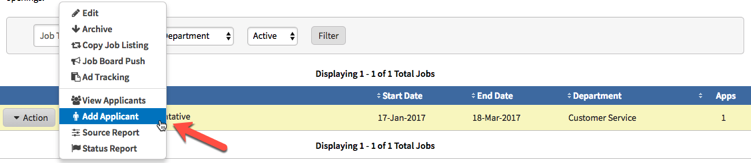
Manually adding an applicant to your applicant tracking system is very simple. Please navigate to the job your applicant is applying for. Click on the “Action” button next to the job title.

After clicking the “Action” button, please click on the option “Add Applicant”
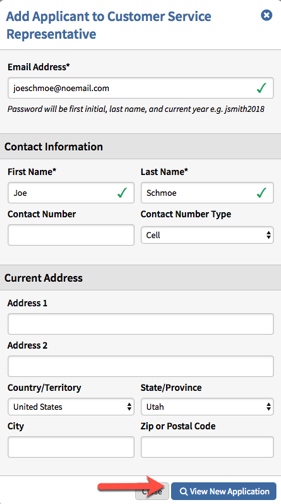
After clicking “Add Applicant” you will be presented with a pop-up menu to enter your applicants’ contact information. You must enter a valid email address with the applicant’s First and Last Name. Then click the “Add Applicant” button in the lower corner of the screen.

After you have added the applicant to the job you will see that the button “Add Applicant” has changed to “View New Application”. You can then click “View New Application” to be transported to the applicant’s profile.
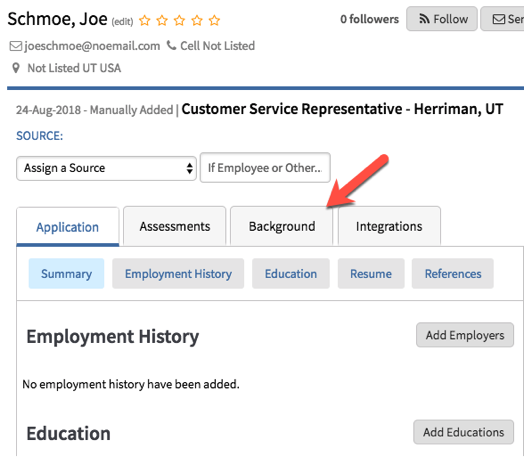
When you are on the applicant’s profile, you can then proceed to the background check tab and place a background check order for your new applicant. Please note that the Text Message feature for manually added applicants is not available.
Comments
Please sign in to leave a comment.