
Account administrators can assign background check permissions to other users in the system. To add or edit background check permissions, click on the ‘Users’ link within your account.
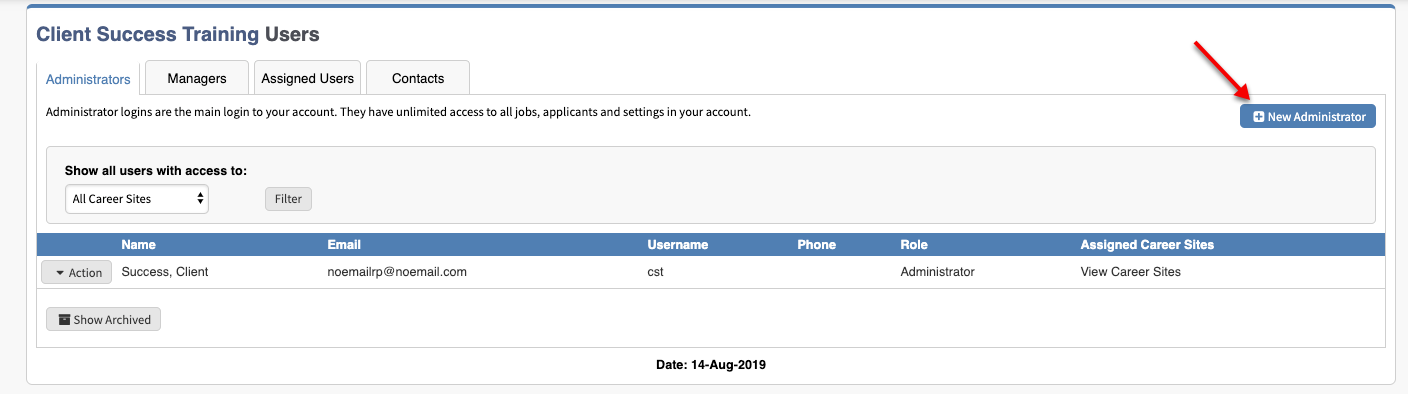
Next, choose the user you would like to edit. Click on ‘Action’ then ‘Edit.’
Next, choose the permissions you would like to add or edit for the user.
CC Notification Option:
Users that have permissions to order and view background checks can have additional users copied on the completed background check email notification. Note: Only users with permissions to order and view background checks are available to be copied on completed background check notifications.
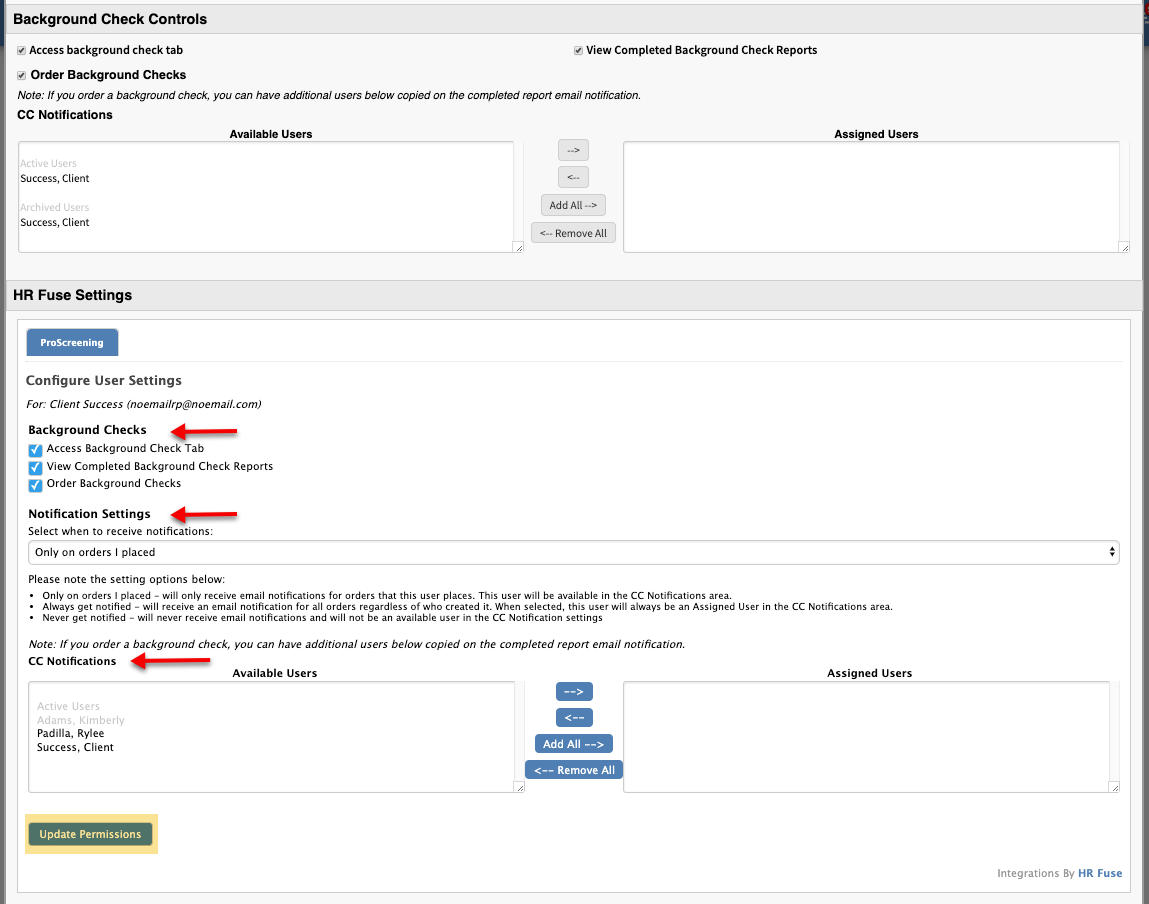
After all of the desired user’s have been added, click ‘Update User.’
Comments
Excellent guide, thank you!
Please sign in to leave a comment.